Run One Grocery List Together
Last updated
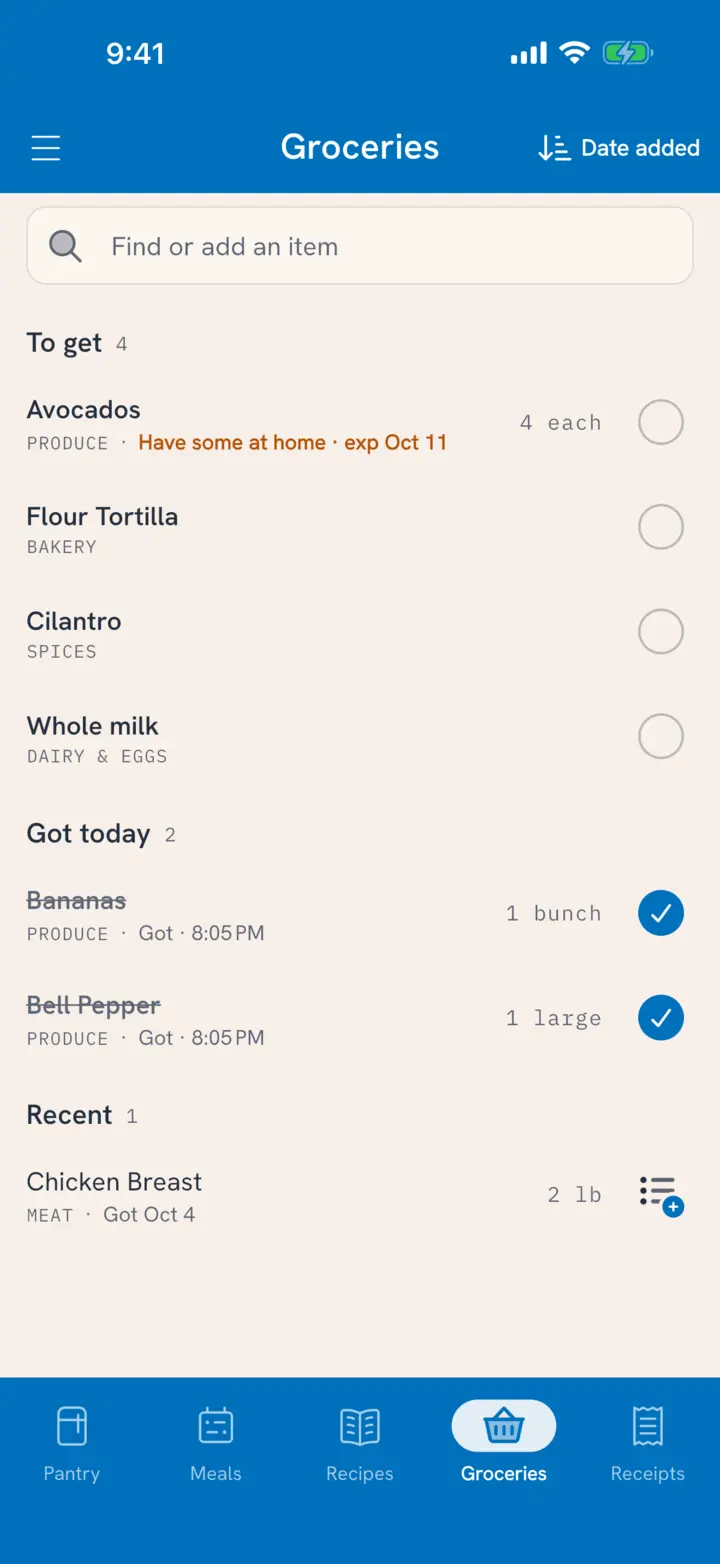
Tuna's grocery list works like the old reusable list on the fridge, where each item is either on or off. What you need sits at the top, what you got today sits under it, and everything you've bought lately is one tap from going back on. The whole household shops from the same list, and it knows what's already in your pantry.
Find or add an item
Type in Find or add an item at the top of the Groceries tab.
- As you type, the list filters to matching items, including ones you bought before.
- Pick a food from the results to add it linked to that food, or tap Add "…" to add exactly what you typed.
- Press return to add it and keep typing the next one.
Anything goes on the list, food or not. Paper towels are allowed. Type something that's already on the list and Tuna points you to that row instead of adding it twice.
Items also arrive without typing:
- Running out. Mark the last of something All gone or Pitch it, and Tuna asks whether it goes on the list. See Mark Food All Gone.
- Cooking. Short an ingredient while cooking a recipe? Add it to the list in one tap. A message says "Capers is on your list". Tap Edit on it to set the amount, brand or store.
What you need, what you got, what's recent
The list has three parts:
- To get: what you still need.
- Got today: what you checked off on this trip, struck through, until the day ends.
- Recent: everything you bought or didn't need in the last month, newest first. Each says what happened ("Got Oct 4", "Not needed Oct 2"). Tap the add button on one to put it back on the list.
Recent clears itself as items age past a month, and search still finds the older ones. There's no history to tidy.
Don't buy it twice
When a food on the list is already in your pantry, its row says so in amber: Have some at home · exp Oct 9. That's the moment to check the fridge before you buy a backup that goes bad behind the first one.
Search shows the same line, so you see what's at home before you add something.
Shop the list
- Check it off: tap the circle on the right of the row, or swipe right.
- Don't need it after all: swipe left for Not needed. It moves to Recent, ready for next time.
- Put it back: on a Got today row, swipe right for Not yet.
Sort the list from the menu at the top: Date added, Grocery aisle, or Name. By aisle, the list is grouped the way a store is laid out, starting with Produce, so you walk the store once.
Edit an item in place
Tap a row and it opens right there in the list:
- The name at the top is editable. Tap it and type.
- At home lists what you already have of it, with amounts, shelves and dates.
- Kind links the item to a food (Choose or Change). Linking is what powers the at-home line.
- Last bought shows when, where and for how much.
- Amount, Brand and Store are fields to fill only if they matter. Leave them blank and the item reads "Any amount", "Any brand", "Any store".
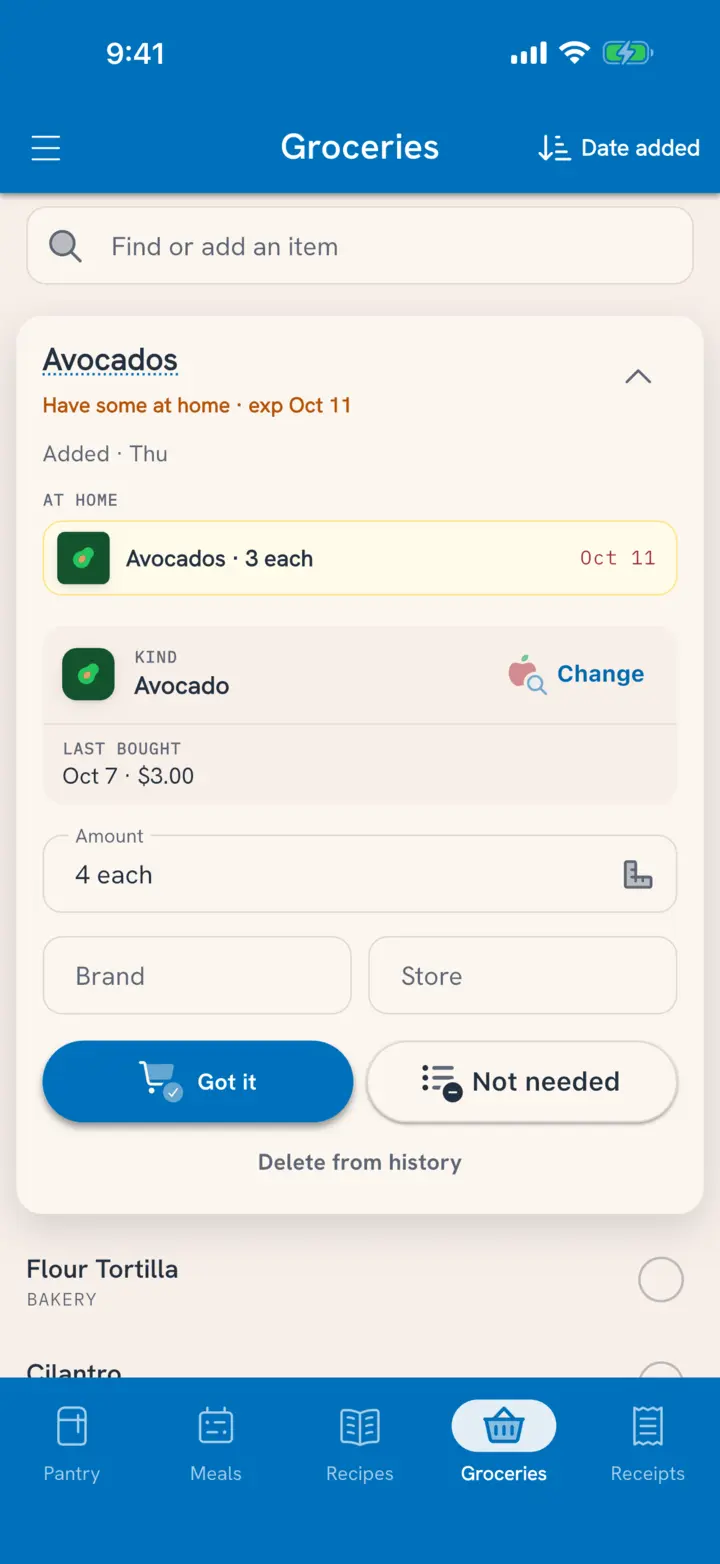
The card's buttons match the swipes: Got it and Not needed on items you need, Not yet on items you got today, Add to list on recent ones. Delete from history at the bottom removes an item for good.
Shopping together, live
The list is shared across the household in real time:
- Add lemons from the couch and whoever's at the store sees them appear.
- They check off the milk and it's checked off for everyone.
- Two people can split one list across two stores without a "did you get eggs?" text.
Closing the loop at home
Checking items off marks them bought. It doesn't add them to the pantry. That happens when you scan the receipt at home: every item lands in your pantry with an expiration date and the price you paid. Scanning barcodes or searching works too.
Related
- Who sees the list? Share One Pantry.
- How does food leave the pantry? Mark Food All Gone.
- Buying less to begin with: Buy Only What You Need.