Add Each Shop From the Receipt
Last updated
Once your pantry is loaded, the receipt is how it stays current. Take one photo when you get home and Tuna reads every line: the items, the prices, the store and the date. Each line becomes a pantry item with the price you paid and an expiration date, and weeks later the same receipt shows what became of that trip: how much got used, and what got tossed.
Scan the receipt
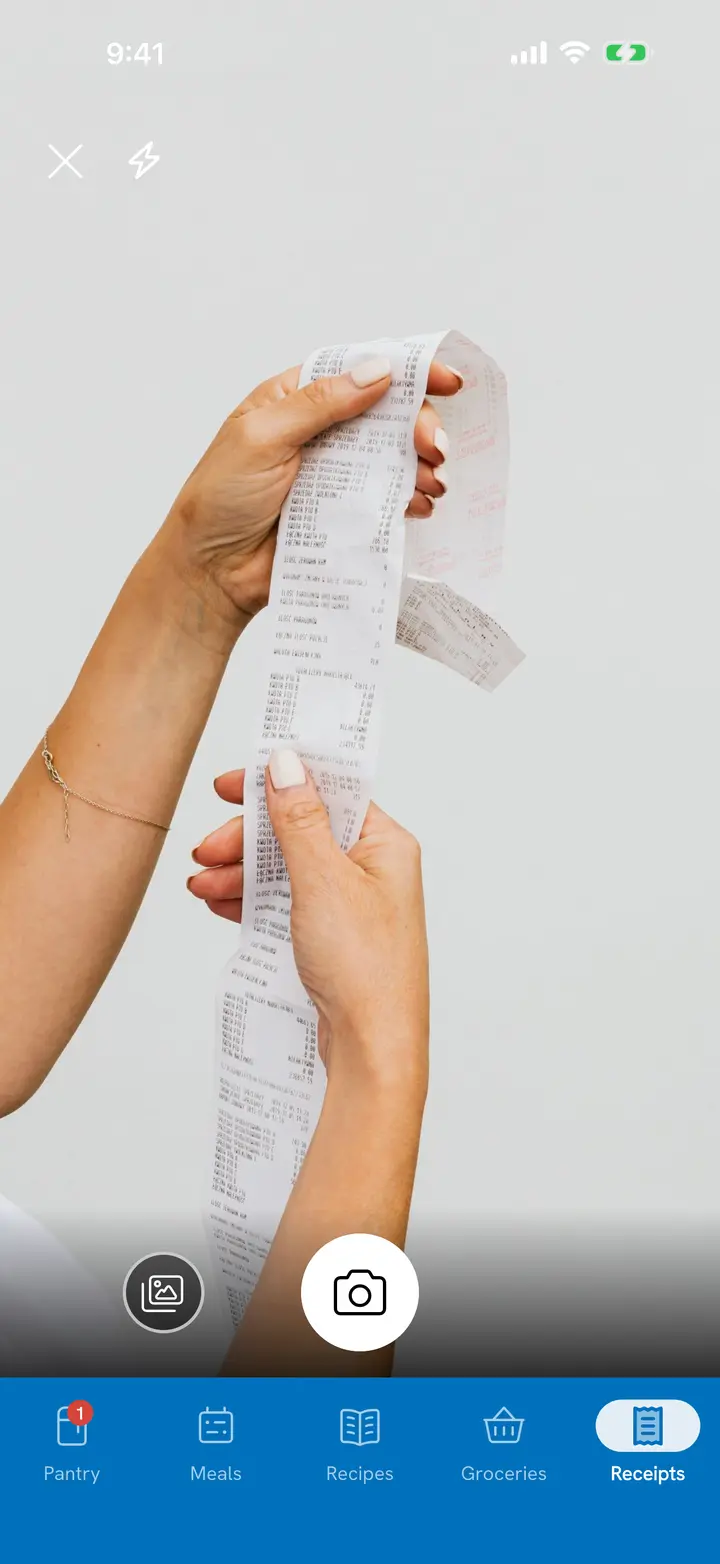
- Open the Receipts tab and tap the scan button in the corner. (From the Pantry tab, + then Scan Grocery Receipt works too.)
- Lay the receipt flat and photograph the whole thing in one shot.
- Tuna reads the lines and opens the receipt with each line on it.
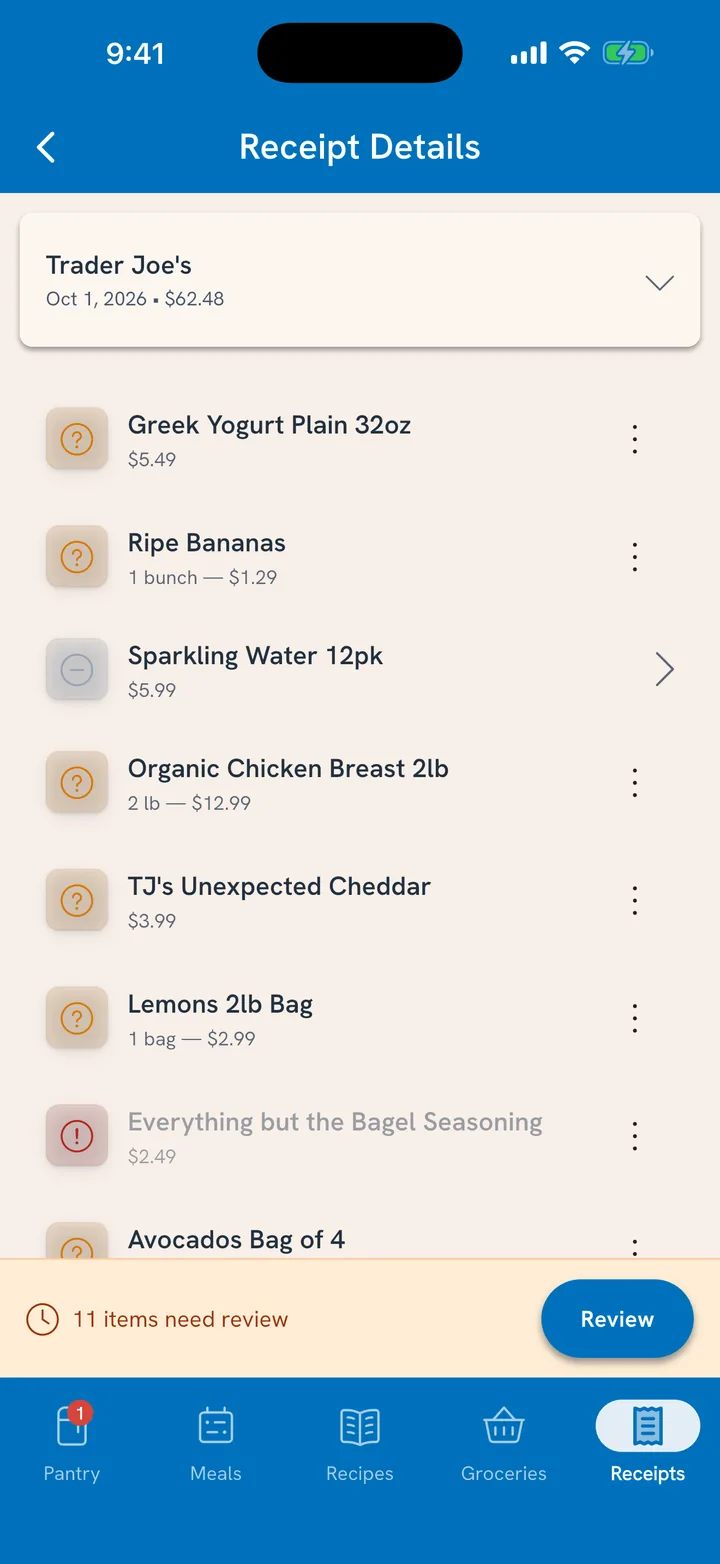
Lines Tuna is sure about arrive already linked to a food. That includes lines your household has bought at this store before, even through the receipt's abbreviations, and lines that plainly name a food ("A-GARLIC EACH"). Anything less certain waits for you.
Review each line
Tap Review and every line comes past you as a card, one at a time, so the amount, cost and date you keep are ones you've seen.
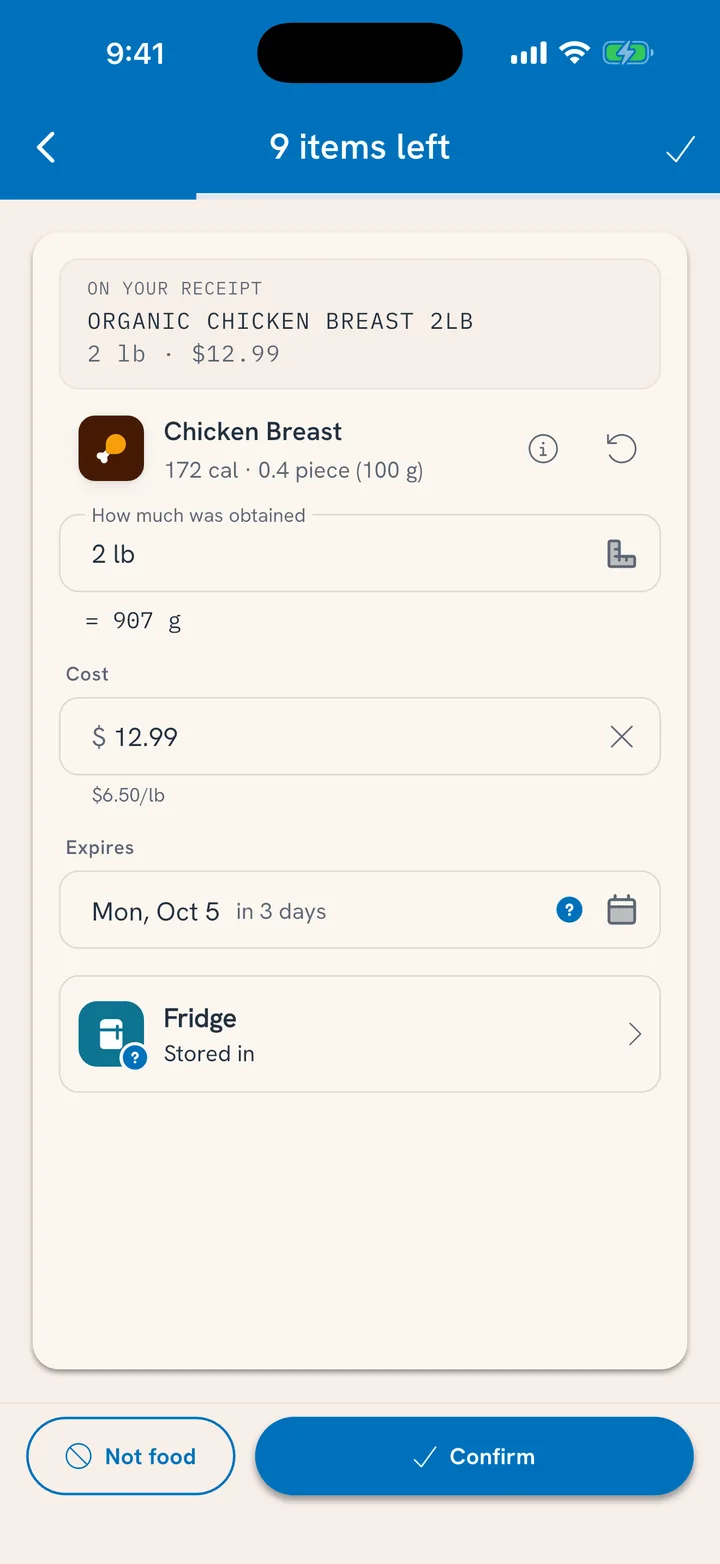
- On your receipt is the line exactly as printed ("ORGANIC CHICKEN BREAST 2LB"), with its amount and price.
- The food it links to sits under it. That link gives the item nutrition, a shelf life and a place in your pantry. When there's no link yet, Tuna offers its best guess to check, Scan the barcode (a package barcode or a produce sticker), or Search by name, starting from the receipt's words.
- How much was obtained starts from the size printed on the line ("6 OZ", "52 OZ") and the count ("Qty 3" under an item is 3 of it). Loose produce sold by the piece reads as pieces: "4 @ $1.19" is 4 apples.
- Servings per container shows up only when Tuna needs that count for this product. Answer once and it sticks to that food.
- Cost is what you paid for the line, discount already taken off.
- Expires comes from how long that food lasts where you're keeping it, counted from the shopping day. A ? means it's an estimate worth a glance at the package.
- Stored in is the pantry section it goes to. Change it and the date follows.
Tap Confirm to keep the line, or Not food for the paper towels and the dish soap. To leave a line for later, swipe on to the next one.
Split a line across sections
Three bags of bagels: two go in the freezer, one in the pantry. On the line's card, tap Split above How much was obtained (for a branded product, then pick Split Multiple Sections).
- Tap a part's section to choose where it goes, and tap its amount to set how much.
- Tap + Section to add another place.
- Tap Done.
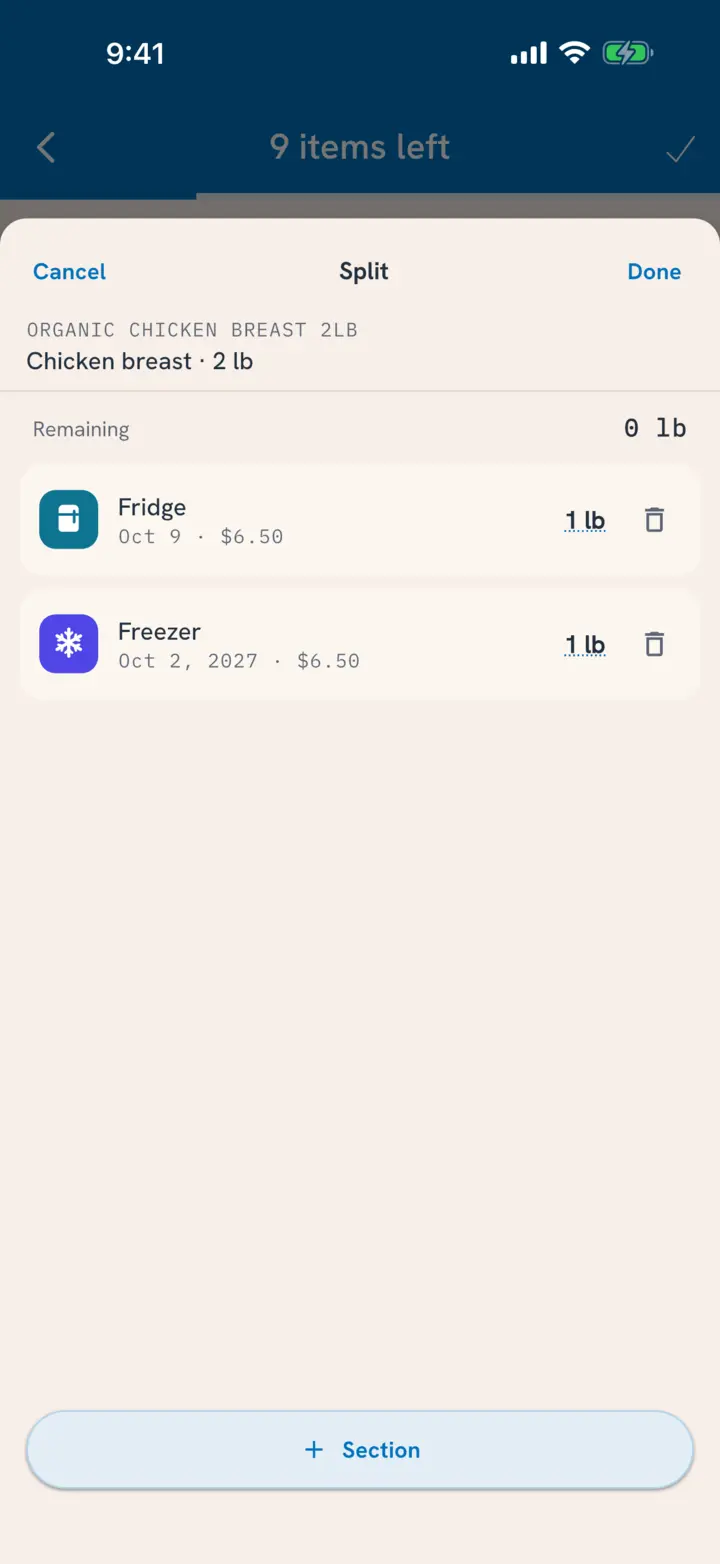
Each part gets its share of the price and its own date. The frozen bags get a freezer date and keep the days they had left for when you thaw them.
The split shows on the card as "Split · 2 sections". Tap it later, from the card or the receipt line, to move amounts around, add another section, or remove a part you haven't touched to fold it back in.
Variety packs work the same way. Choose Split Multiple Products and say what's inside the box by scanning or searching each product: an Olipop variety pack holds 4 Vintage Cola, 4 Strawberry Vanilla, and so on. Each flavor becomes its own pantry item with its share of the price. Say what's in a pack once and Tuna knows it, so the next box arrives already split.
It learns your store
Receipts are written in shorthand ("GV ORG BLK BEANS 15OZ"), and every store abbreviates differently. Tuna treats every correction as a lesson:
- Link a line once and that label links itself next time at that store.
- Lines for food your household has bought there before match on their own.
- The more you scan, the fewer lines wait for you.
See what became of each trip
The Receipts tab is a record of how each shop went, not only what it cost.
- Trips are grouped by month. Each month's heading shows what you spent, how many trips, and anything tossed.
- Each trip shows what became of it once some of it has been eaten, cooked or thrown out: "Used 63% · Tossed $10.15", or "All used" when everything got eaten and nothing went to waste.
- Store chips at the top show one store at a time, when you shop at more than one.
- Swipe a trip left to delete it.
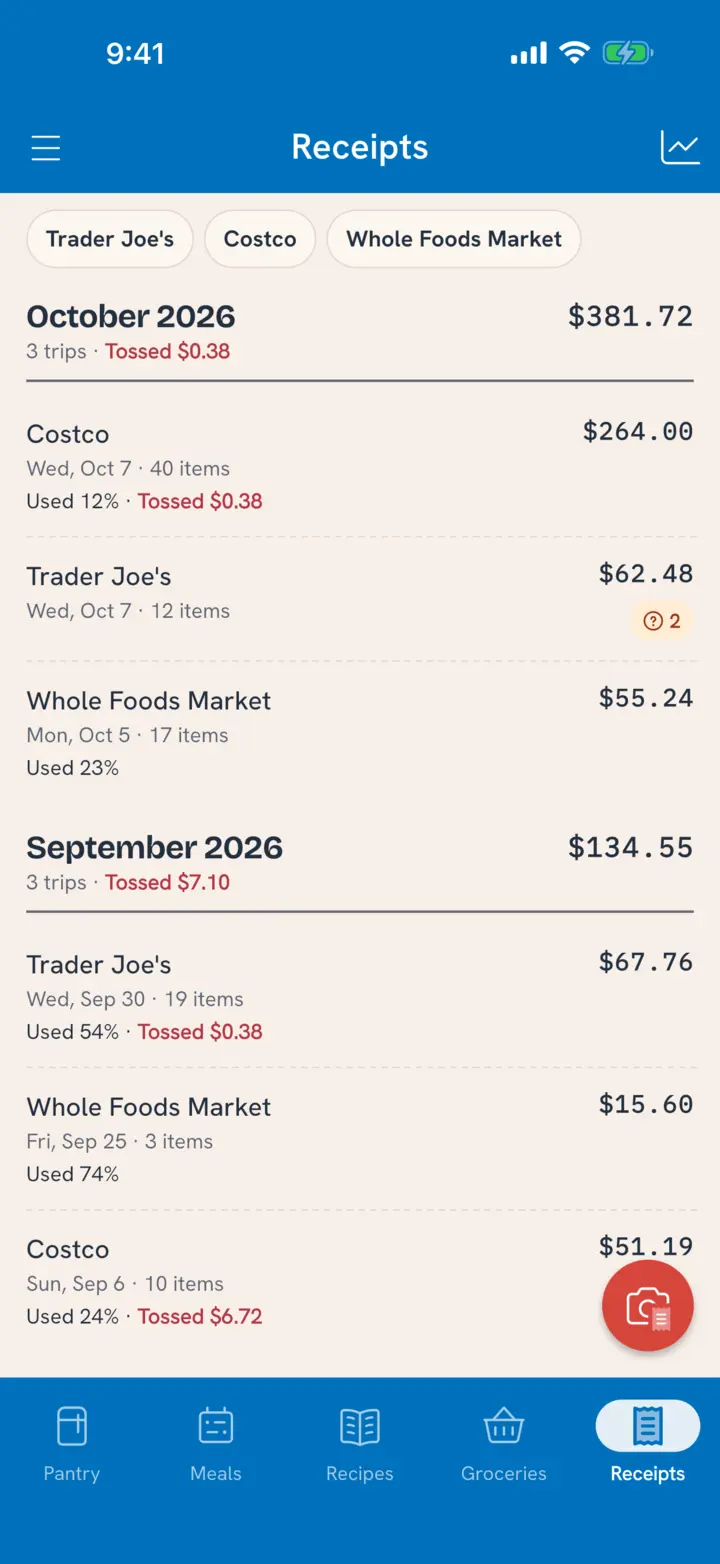
Open a trip and tap a line. While some of it is left, the line shows its pantry item the way the pantry list does, and tapping that opens it. Once it's gone, the line says what became of it ("All used", or "Used 60% · Tossed $1.20").
For the bigger picture, tap the chart in the corner of the Receipts tab. See See What Food Really Costs.
Tips for a clean scan
- Lay the receipt flat and shoot in decent light. Curled or shadowed paper is harder to read.
- Fit the whole receipt in one photo. Step back for a long one; one full shot reads better than close-ups.
- Scan soon after shopping. Thermal paper fades, especially in a hot car.
- Faded or handwritten receipts may need a few fixes in review. A farmers market haul is often faster to add by name.
Related
- No receipt? Load Your Pantry in One Go works for any bag of groceries.
- Moving something after it's in the pantry? Customize Pantry Sections covers Move.
- Where does the money go? See What Food Really Costs.