Cook Step by Step
Last updated
Start cooking turns one of your recipes into a cook mode you can read from across the counter: one step per screen, big type, and the screen kept awake. Before you start, it shows what to get out and which shelf it's on. When you finish, the dish goes into your pantry with what it used already counted.
Start cooking
- Open a recipe on the Recipes tab and tap Cook.
- Check the sentence at the top ("Sam is cooking dinner tonight, making 4 servings") and any ingredient that still needs a choice. See Cook a Recipe for that screen.
- Tap Start cooking.
Start cooking shows up for a meal that's happening now or later. For dinner tonight it's the main button. For a meal later in the week, Plan is the main button and Start cooking sits beside it. A meal that's already over doesn't offer it, because you've already cooked: Add to pantry records what you made.
Get out what you need
Before step 1, the Get out screen lists what the recipe takes from your pantry:
- One row per pantry item. If a line comes from two cartons of eggs, both cartons are listed.
- The shelf it's on, so you know to go to the fridge door or the freezer.
- A date on anything expiring soon, so you grab the open carton before the new one.
- Pick next to any ingredient you haven't chosen yet.
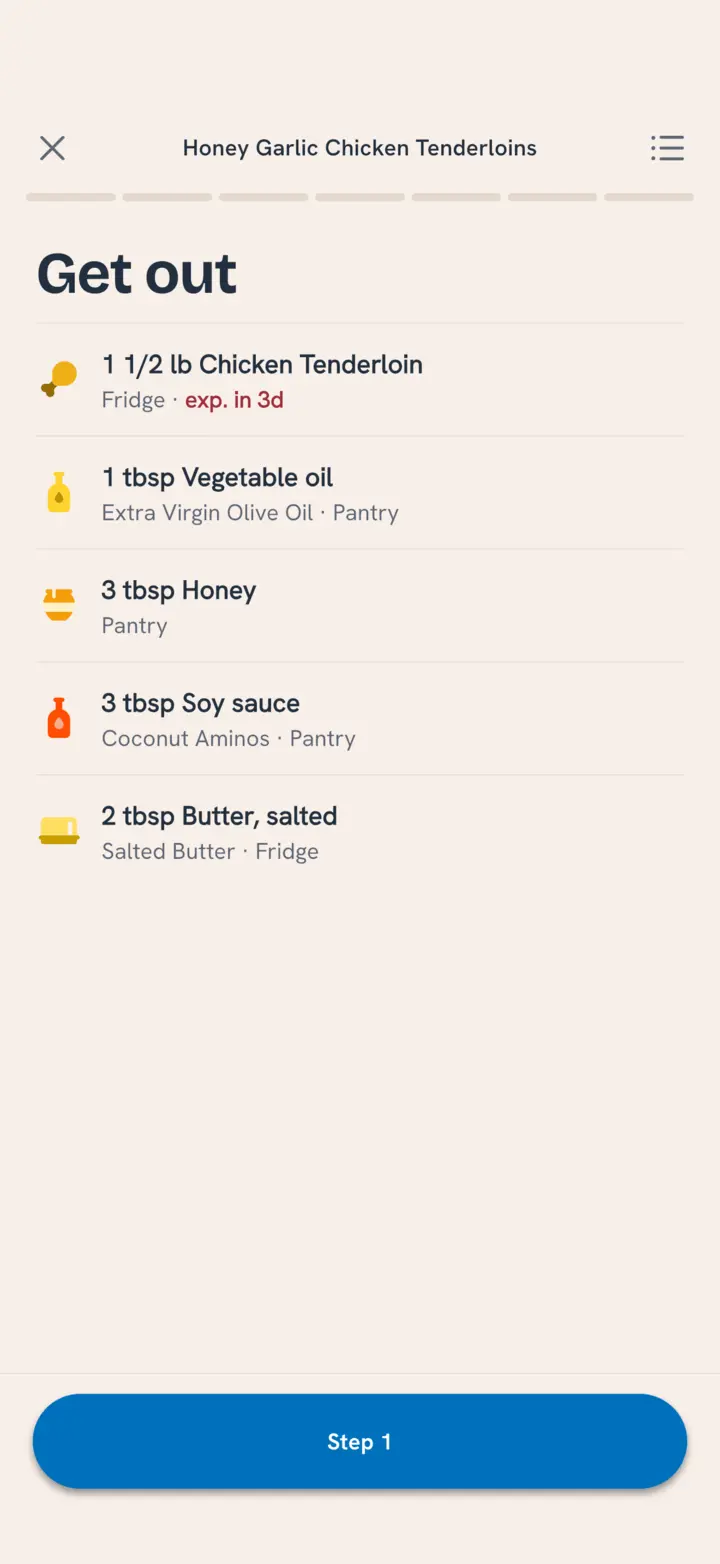
Anything you skipped or marked Need to buy stays off the list. When everything is on the counter, tap Step 1.
Follow the steps
Each screen is one step, with its number at the top ("3 of 7") and a progress bar across the top.
- The step's ingredients are marked in the text, each with the food's icon, so "the butter" stands out from the rest of the sentence.
- Tap a marked ingredient to see how much this step takes, the whole amount the recipe calls for ("of 4 tbsp"), and which package it comes from in your pantry.
- Amounts follow the batch size. Make a double batch and "2 tbsp butter" reads "4 tbsp".
- Not picked yet? An ingredient still waiting for a choice shows under the step with Pick. Choose it there without leaving the step.
- Tap the list icon at the top right for All ingredients, with the step each one is used in.
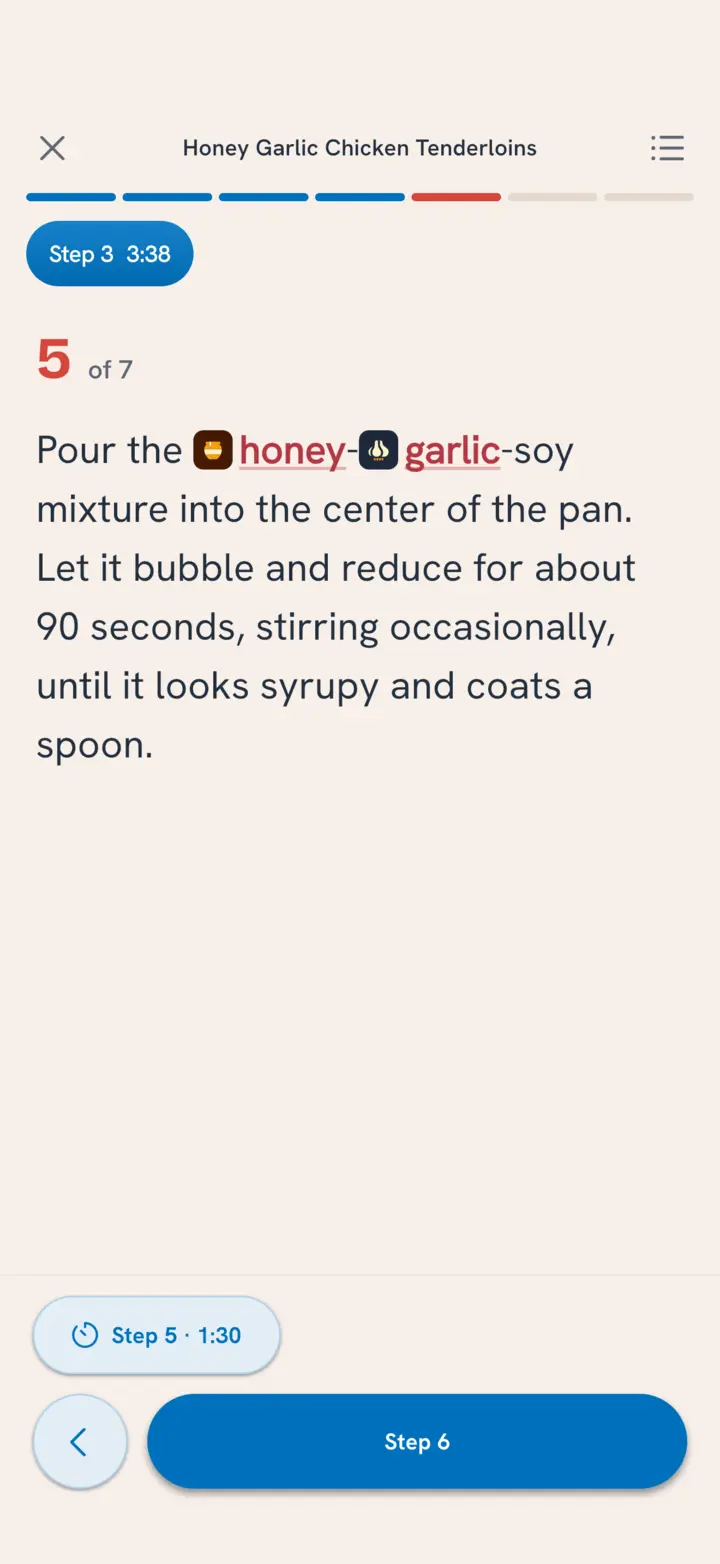
Tap Step 4 to move on, or the back arrow to go back. You can also swipe left and right between steps.
Run timers
When a step mentions a time, a timer button appears at the bottom of the screen, labeled by step: "Step 3 · 10:00". A step with two times gets two buttons, "Step 3a" and "Step 3b".
- Tap a timer to start it. Running timers count down at the top of the screen.
- Start as many as you need. The rice can run while the chicken rests.
- Timers ring with your phone locked, and keep running if you leave cook mode.
- When one finishes it reads "Step 3a done". Tap it to clear it.
Leave and come back
Tap the close button at the top left whenever you need to. Tuna keeps your place on this phone.
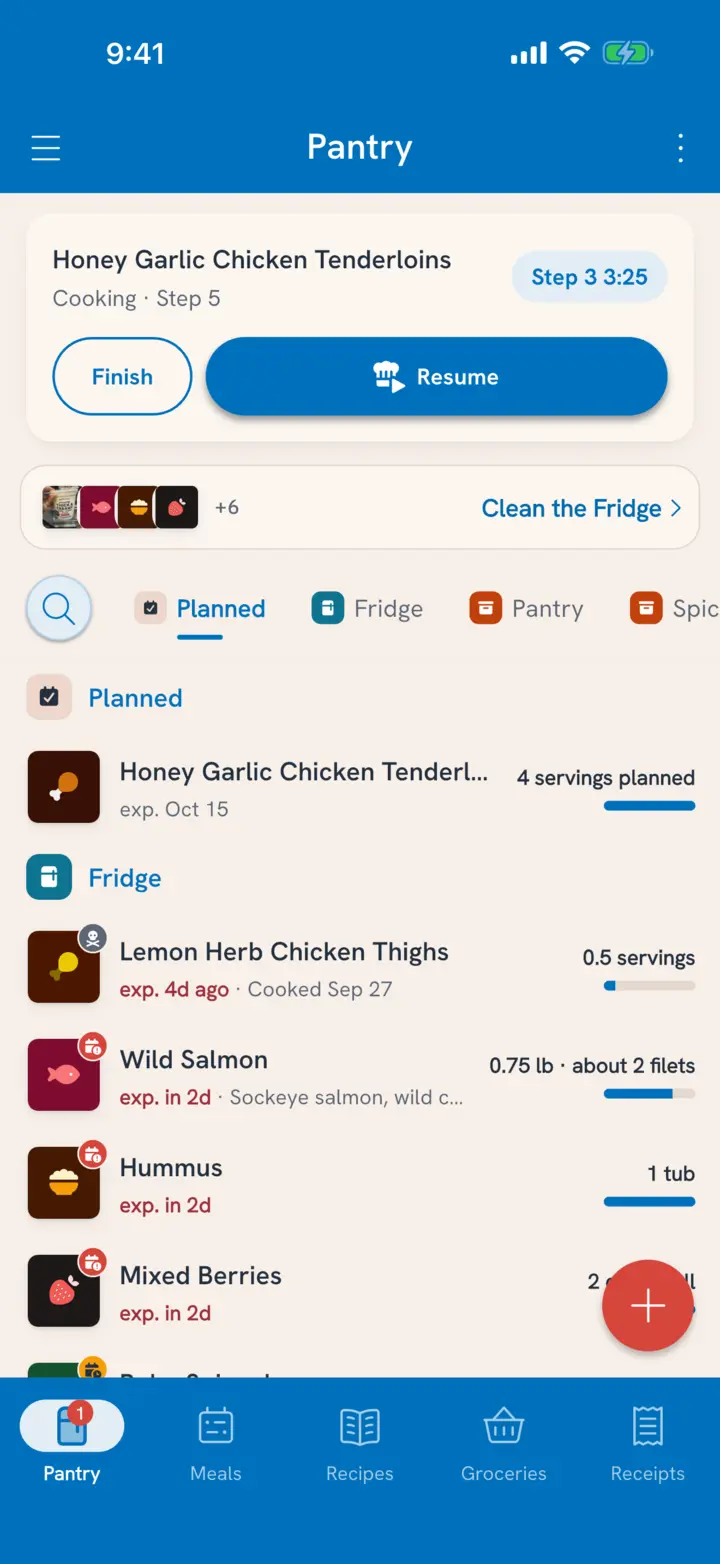
To pick up again, open the Pantry tab. A card at the top shows the dish, the step you were on ("Cooking · Step 3") and any running timer. Tap Resume to go back to that step, or Finish if you're done.
Finish
On the last step, tap Finish. You land on the cook screen in past tense ("Sam cooked dinner tonight, making 4 servings"):
- Tap the servings to say how much it actually made, in servings or any unit that fits ("6 cups").
- Check the Leftovers amount, the Pantry Section it goes to, and the Expires date.
- Tap Done.
The ingredients come out of your pantry, the dish goes in, and Tuna tells you what you used: "Used 2 items expiring soon · $4.20 from your pantry". Logging who ate it is separate: eat from the dish later like anything else in the pantry. See Keep Track of Leftovers.
Related
- How do you pick ingredients and set the batch size? Cook a Recipe.
- Where does the dish go once it's cooked? Keep Track of Leftovers.
- How does a recipe know which ingredient each step uses? Write or Edit a Recipe.