Correct Pantry Amounts
Last updated
The pantry updates itself when you scan receipts and cook, so most of the time there's nothing to do. But every kitchen drifts: someone snacks straight from the bag, a package runs out early, a date was never right. This guide is the repair kit. Every fix is a tap or two, and it pays off everywhere, because the alerts, the recipes you can make, and the shared grocery list all read from the same pantry.
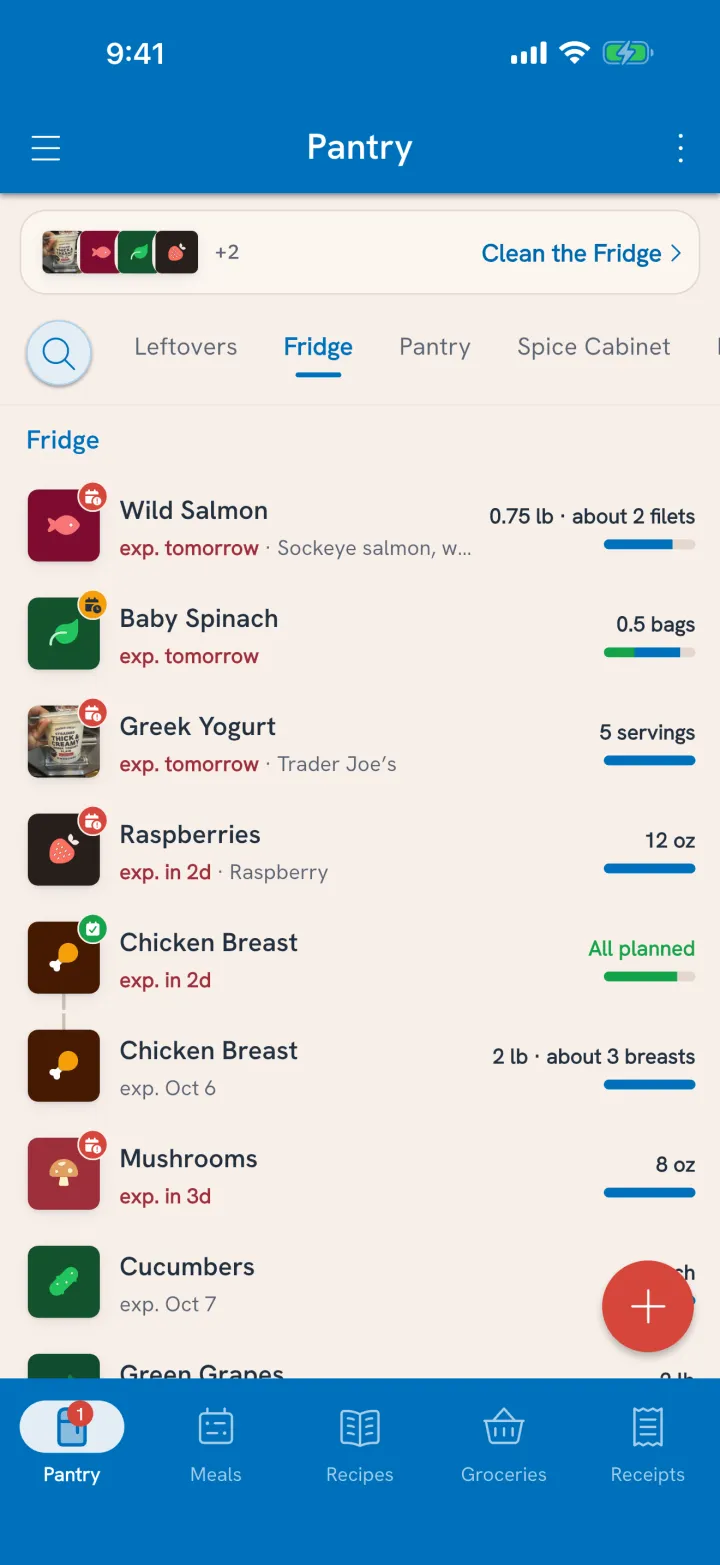
Read an item at a glance
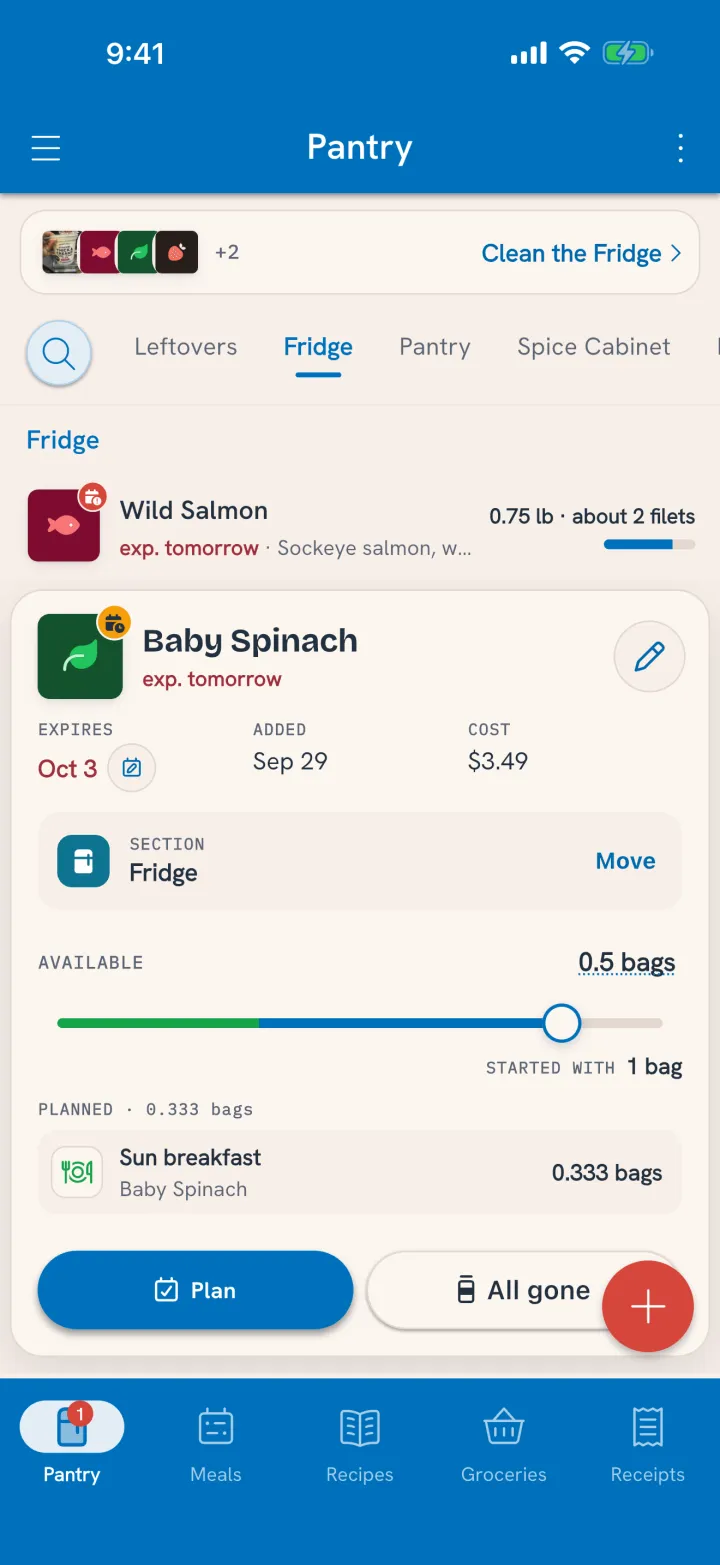
Each row shows what the item is, how much is available, and when it expires. Several packages of the same food sit together, oldest first. Tap any row and its card opens right where it sits, with the details:
- Expires (or Expired), with a button to fix the date.
- Added and Cost.
- Section, with Move.
- Available: what's left minus what's already planned for meals or cooks.
Adjust an amount
- Off by a little? Drag the Available slider down to what's actually there. Tuna records the difference and moves on.
- Finished or thrown out? Tap All gone and say whether it was eaten, tossed, or a bit of both. See Mark Food All Gone.
- Past its date and not worth saving? On an expired item, Pitch records it as waste in one tap.
Correct the details
- Expiration: dates start as suggestions. Fixing one wrong date now beats a week of false alarms later.
- Section: tap Move to put it where it really lives. Moving to the freezer gives it the freezer's longer date. See Customize Pantry Sections.
- What it is: the card's Kind row says what food the item counts as, which is how it matches your recipes. Tap Change if it's wrong. If the link can't be changed, tap Report and we'll take a look.
- Photo: on an open card, tap the photo to see it large or replace it.
- Everything else: tap the edit button on the card to change the name, cost or amount in detail.
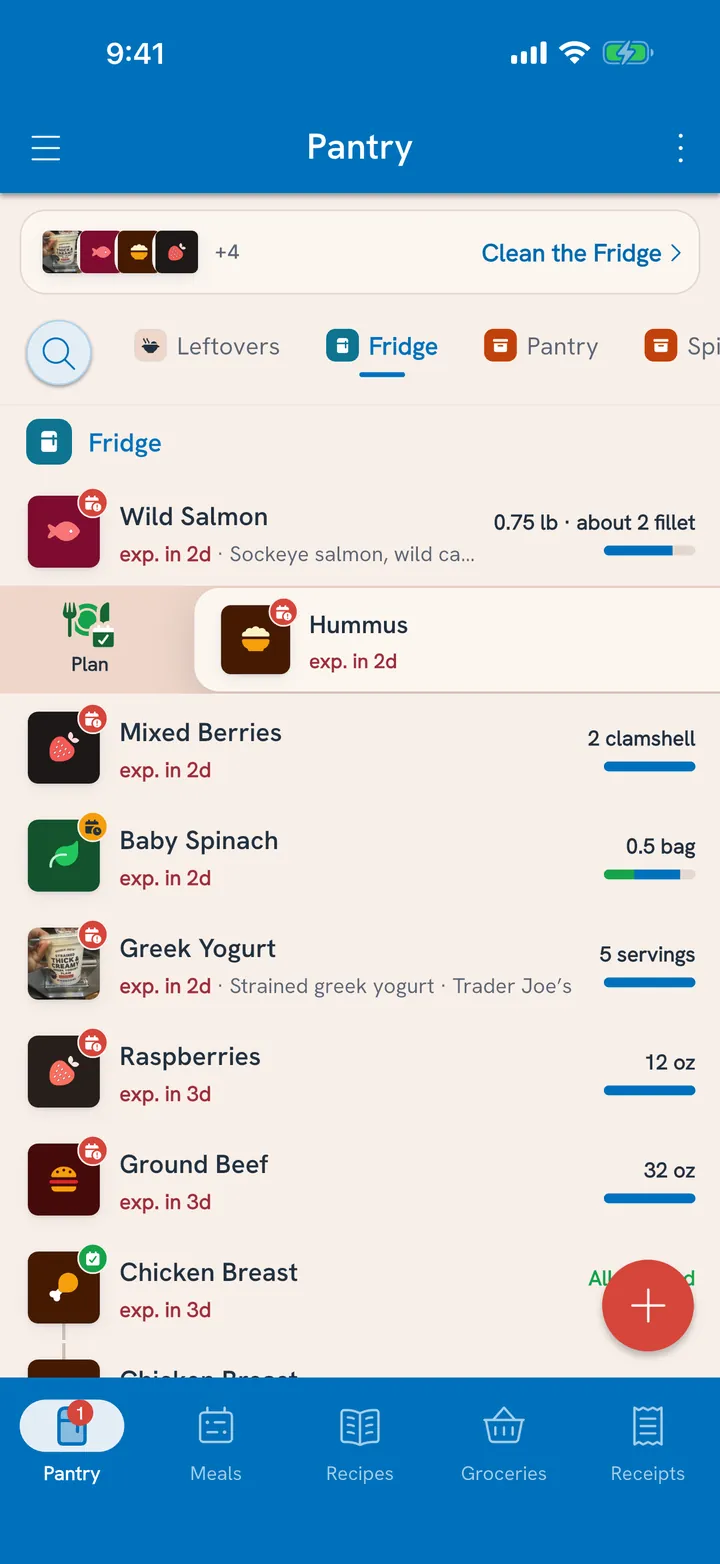
Shortcuts
You don't have to open the card for the common moves.
- Swipe right on a row to Plan it. On an item past its date, swiping right offers Pitch instead.
- Swipe left for Move and All gone. A full swipe left opens All gone, which still asks how much is left before anything is saved.
Do several at once
Press and hold any row to start selecting, with that row already checked. You can also start from the pantry's overflow menu (⋮) → Select items. Tap more rows to add them, then:
- Move puts every selected item in one section.
- All gone clears them all at once. Choose Eaten or Tossed for the whole batch.
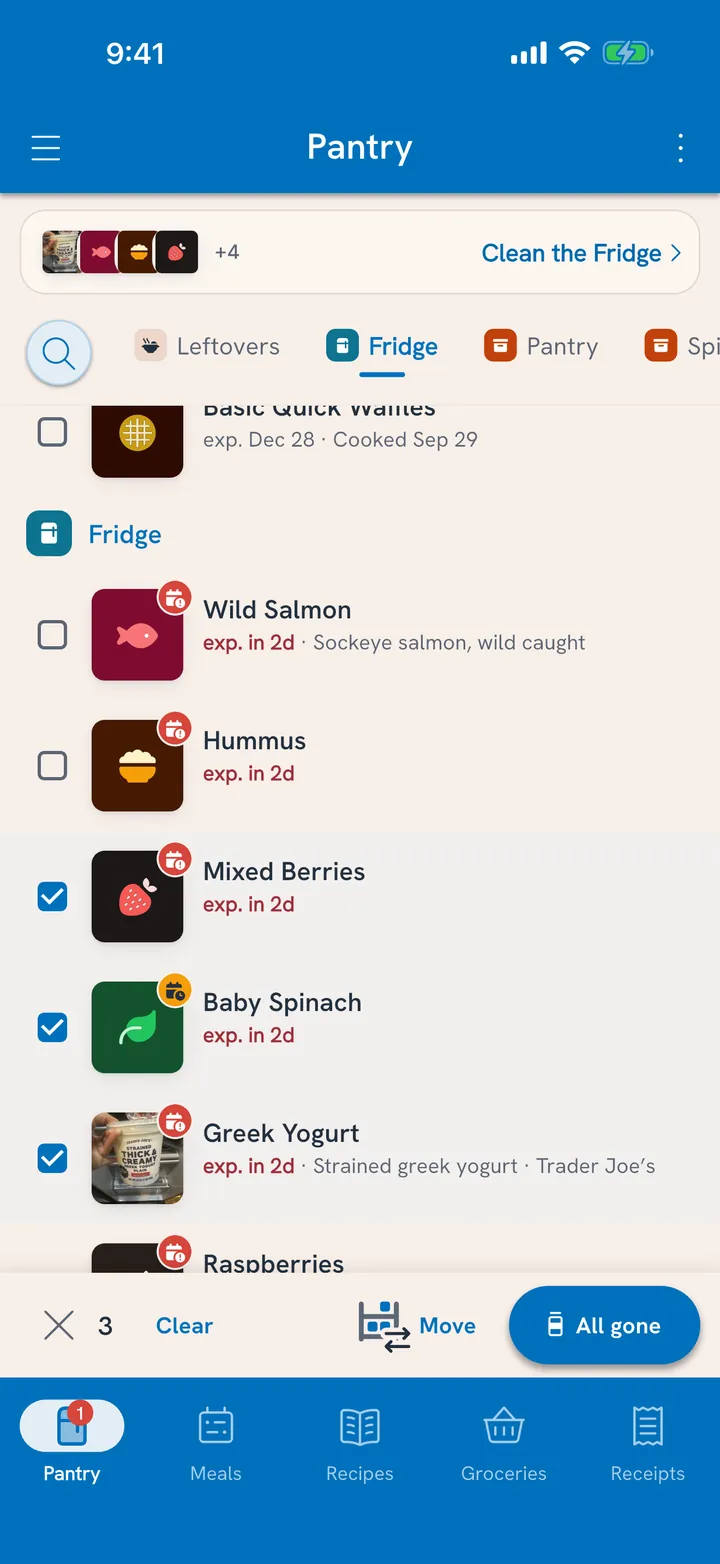
With a filter on (say, everything expired), Select All checks every item the filter shows. Clear unchecks everything, and Exit batch mode in the same overflow menu puts the pantry back to normal.
When a lot is off
- Clean the Fridge: works through everything expiring or expired in one pass. See Clean the Fridge.
- Put away: items with no section yet gather under Unorganized at the bottom of the pantry. Tap Put away to sort them in one sweep.
- Start Over: the reset, in the pantry's overflow menu (⋮). It moves everything to history rather than deleting it.